
Bundle Manager by Tech-M8
Quickly manage your ServiceM8 bundles with CSV imports & bulk tools
Quickly manage your ServiceM8 bundles with CSV imports & bulk tools
Follow these steps to manage your ServiceM8 bundles with Bundle Manager:
Access Bundle Manager from your ServiceM8 Add-ons. You'll see options to upload new bundles, edit existing bundles, or remove bundles in bulk.
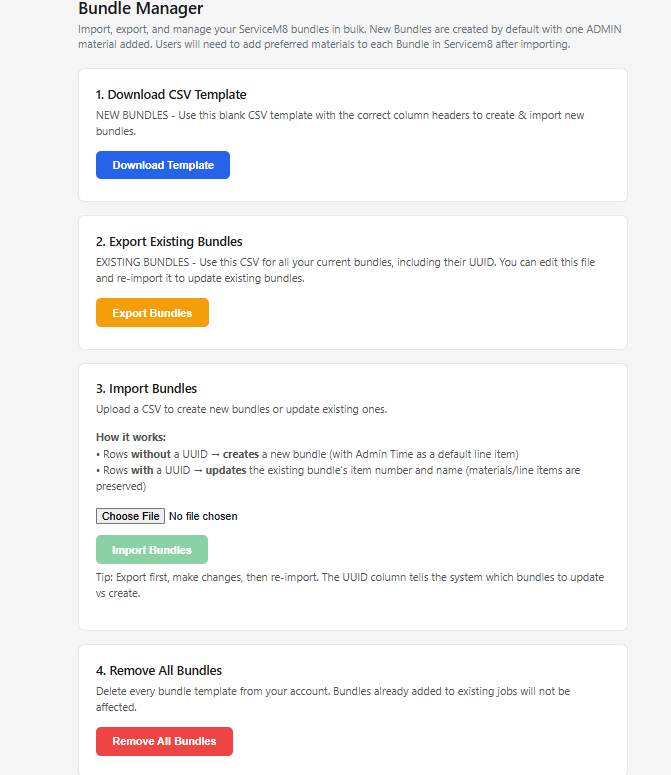
Download the provided CSV template to get started. The template is pre-formatted with the correct columns so your bundles import smoothly into ServiceM8.
Open the CSV template in Excel or Google Sheets and fill in your bundle details. Each row represents a bundle. New bundles are created using ServiceM8's default material "Admin Time" — after importing, you can easily edit or add additional materials to each bundle as desired.
Use the upload tool within Bundle Manager to import your completed CSV file. Your new bundles will be created in ServiceM8 automatically.
Need to update bundles you've already created? Use the edit tool to modify existing bundles in bulk via CSV — no more editing them one by one inside ServiceM8.
Use the removal tool to quickly delete old or outdated bundles in bulk. This saves significant time compared to removing them individually from within ServiceM8.
The Bundle Manager Add-On integrates with ServiceM8 to provide bulk bundle management functionality. This Privacy Policy describes how we handle data in connection with the add-on.
The add-on accesses your ServiceM8 account's bundle and materials data through ServiceM8's API to create, edit, and remove bundles on your behalf.
We store the following information to provide the service:
Bundle data is created directly in your ServiceM8 account. We do not retain copies of your bundle information after processing.
We do not share, sell, or disclose your data to third parties. Data is only transmitted between your ServiceM8 account and our secure processing servers.
Authorization tokens are stored securely and encrypted. CSV uploads are processed in real-time and not retained after import completion.
You retain full control of your ServiceM8 account and data. You may revoke access to Bundle Manager at any time through the ServiceM8 marketplace, which will remove all stored authorization tokens.
If the functionality of this add-on changes in a way that affects data use, this Privacy Policy will be updated accordingly.